This guide shows how to enable the Linux development environment on ChromeOS, install Wine (a Windows compatibility layer), and run the .zip version of Yandere Simulator from your Chromebook.
| Phase | Goal |
|---|---|
| Phase 1 | Enable Linux development environment (Terminal support) |
| Phase 2 | Download the Yandere Simulator .zip (not the Launcher) |
| Phase 3 | Install Wine on Debian-based Linux (ChromeOS Linux) |
| Phase 4 | Move and extract game files into Linux files |
| Phase 5 | Configure Wine and launch YandereSimulator.exe |
Phase 1: Enable Linux Development Environment
This step turns on the Linux development environment on your Chromebook so you can use a Terminal and install tools like Wine. During setup, it’s recommended to allocate at least 10GB of disk space (more is better).
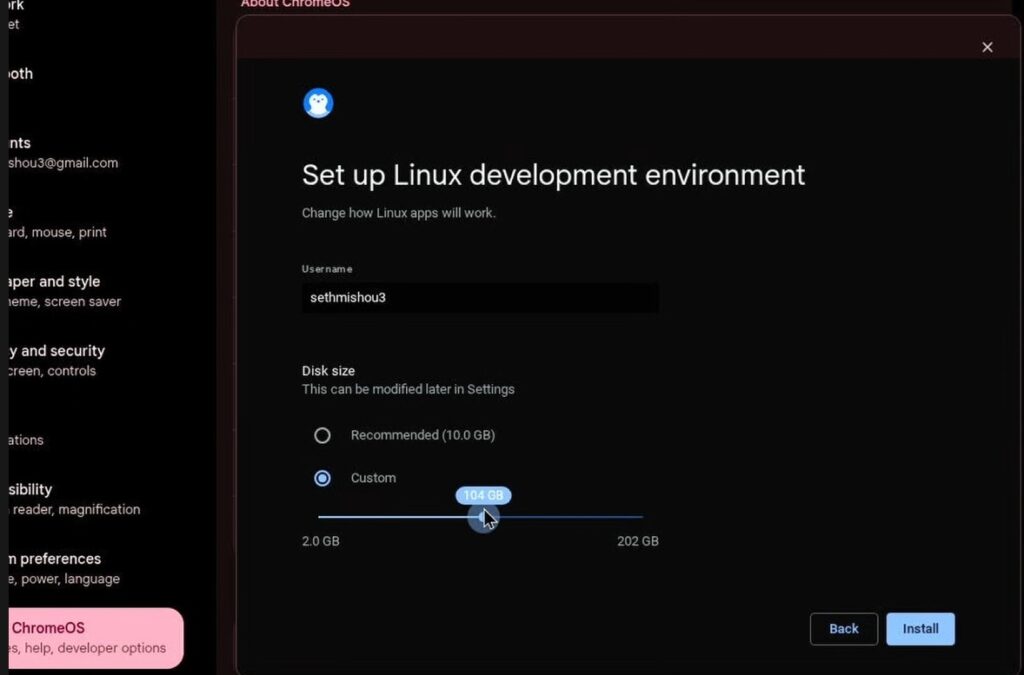
- Open Settings on your Chromebook.
- Go to About ChromeOS > Developers.
- Find Linux development environment, then click Turn On.
- Follow the setup prompts and allocate at least 10GB of disk space.
- Wait for installation to finish. A Terminal window should open automatically.
Notes / Common mistakes:
- Allocating too little storage can cause problems later when installing packages or storing the game files. Use 10GB+ if possible.
- Make sure the Terminal opens at the end of the setup—this confirms Linux is enabled and ready.
Phase 2: Download Yandere Simulator
This step downloads the game files you will run through Wine. For a smoother setup on Linux, download the .zip file version and avoid the Launcher.
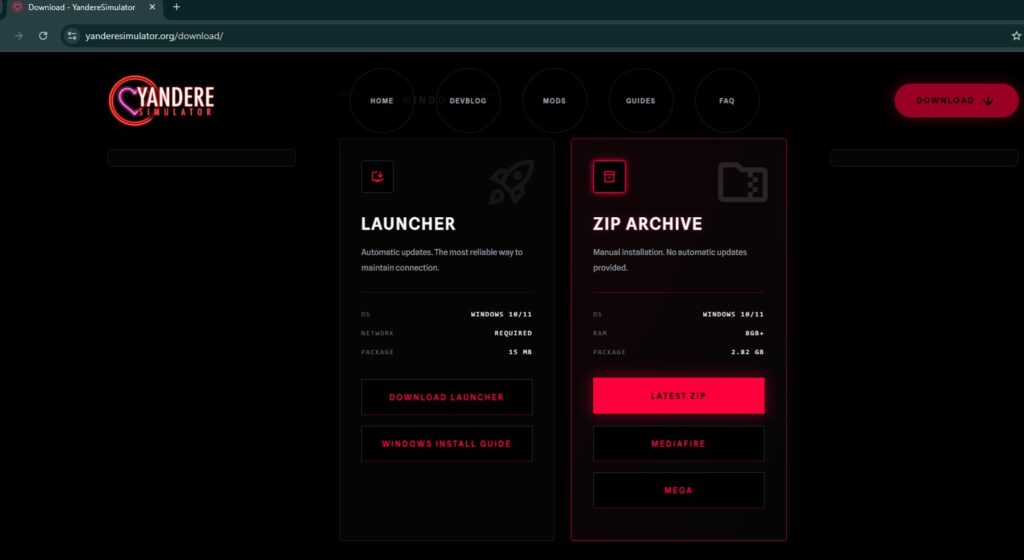
- Go to the Yandere Simulator download page.
- Download the .zip file version of the game (avoid the Launcher for a smoother setup on Linux).
- Wait for the download to complete (it is a large file).
Notes / Common mistakes:
- Downloading the Launcher instead of the .zip can complicate setup on Linux—stick to the .zip option.
Phase 3: Install Wine (Compatibility Layer)
This step installs Wine so your Chromebook’s Linux environment can run Windows applications like YandereSimulator.exe. ChromeOS Linux is Debian-based, so you’ll use apt commands in the Terminal.
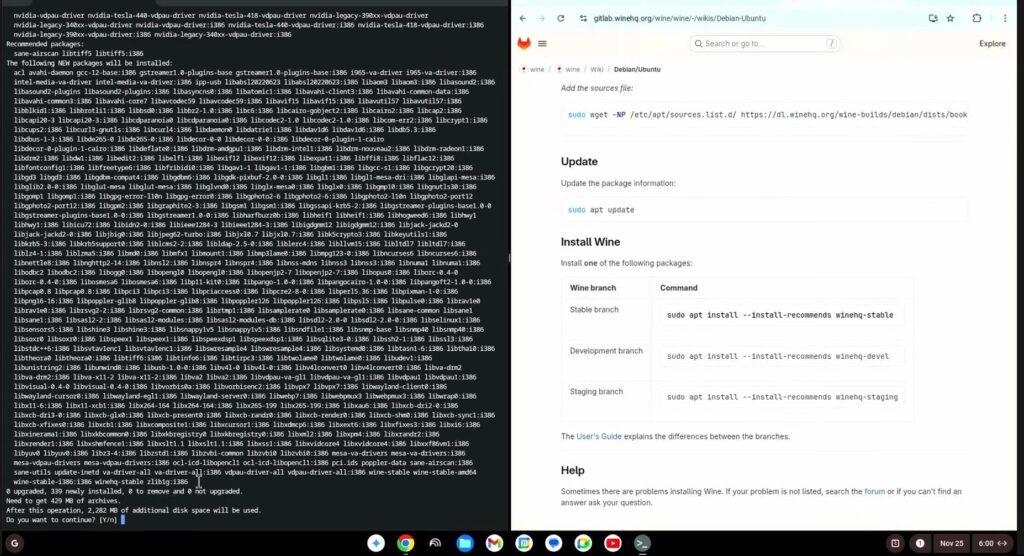
- Enable 32-bit architecture:
sudo dpkg --add-architecture i386 - Add WineHQ repository keys:
sudo mkdir -pm755 /etc/apt/keyrings
sudo wget -O /etc/apt/keyrings/winehq-archive.key https://dl.winehq.org/wine-builds/winehq.key - Add the Debian 12 (Bookworm) repository:
sudo wget -NP /etc/apt/sources.list.d/ https://dl.winehq.org/wine-builds/debian/dists/bookworm/winehq-bookworm.sources - Update packages and install Wine:
sudo apt update
sudo apt install --install-recommends winehq-stable
(Type “Y” and press Enter when prompted.)
Notes / Common mistakes:
- When prompted during installation, you must confirm by typing Y and pressing Enter.
Phase 4: Prepare Game Files
This step places the extracted game files into Linux files so they’re accessible from the Linux environment (and therefore accessible to Wine). You’ll extract the .zip and copy its contents into a new folder inside Linux files.
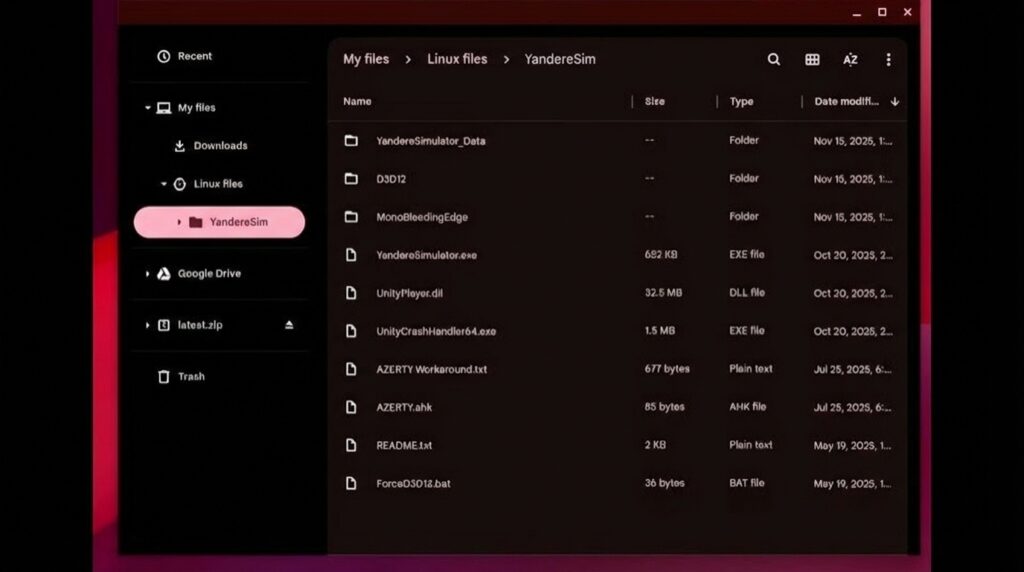
- Open the Files app on your Chromebook.
- Go to Downloads and double-click the Yandere Simulator
.zipfile. - Go to Linux files and create a new folder (for example: YandereSim).
- Copy all files from the
.ziparchive and paste them into your new folder in Linux files.
Notes / Common mistakes:
- Make sure the game files are copied into Linux files (not left in Downloads), so Wine can access and run them reliably.
Phase 5: Configuration and Launch
This step configures Wine for the game executable and launches the game. You’ll run winecfg, install Wine Mono if prompted, add the game executable as an application, set the Windows version, and then open the .exe using Wine.
- In the Terminal, type the following and press Enter:
winecfg - If prompted to install Wine Mono, click Install.
- In the Wine Configuration window:
- Click Add application.
- Navigate to:
Z: > home > [your_username] > YandereSim > YandereSimulator.exe - Set the “Windows Version” to Windows 10 or Windows 11.
- Click Apply, then OK.
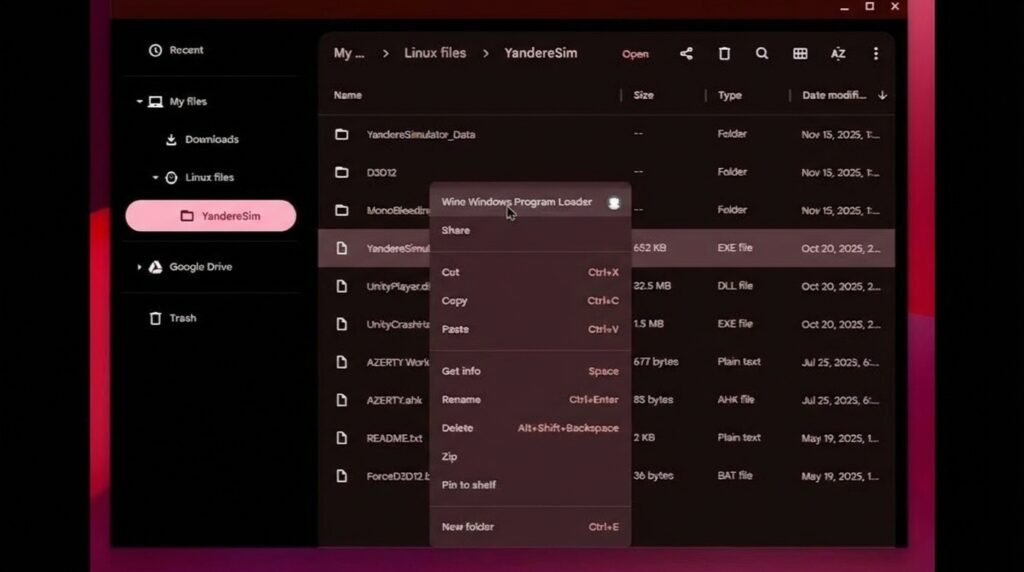
- Go back to the Files app > Linux files > your game folder.
- Right-click
YandereSimulator.exeand select Open with Wine Windows Program Loader.
Important performance note: Performance on Chromebooks can vary significantly. If the game is laggy, lower the graphics settings within the game menu.