This guide walks you through installing and running the official Windows version of Yandere Simulator on an Apple Silicon Mac using Whisky, an app that simplifies running Windows programs through Wine and Apple’s Game Porting Toolkit inside Windows-style containers called bottles.
Step 1: Confirm What You Need (Requirements Checklist)
This step ensures you have the correct Mac hardware, the correct app location for Whisky, and the official game files. Skipping this step is the most common cause of launch problems later.
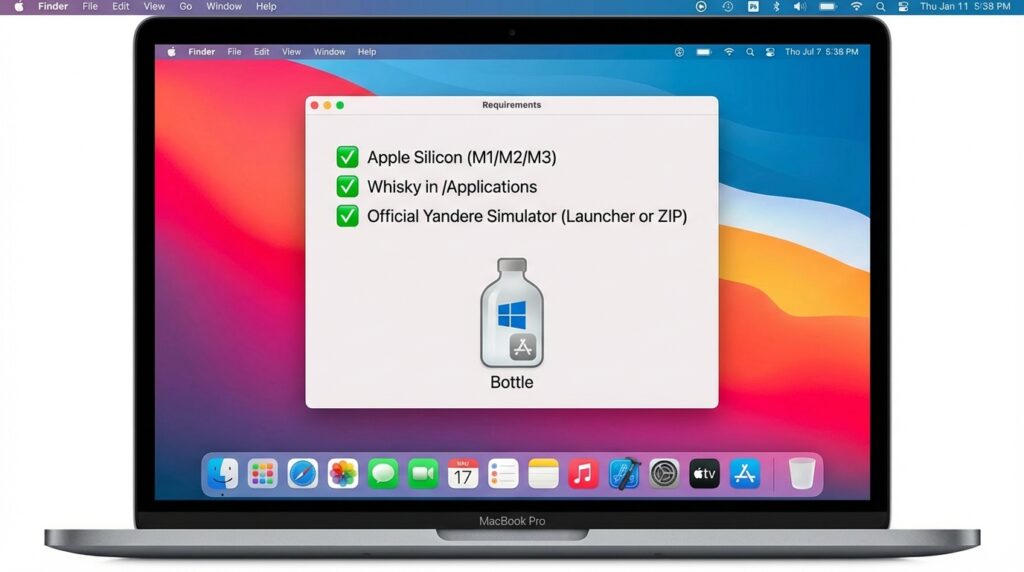
- Apple Silicon Mac (M1 / M2 / M3). Whisky’s Apple Game Porting Toolkit workflow is intended for Apple Silicon, not Intel Macs.
- Whisky installed in the /Applications folder (important). Whisky may fail to launch if it isn’t placed there.
- Official Yandere Simulator files from the official download page, using either:
- Launcher method (recommended for easy updates), or
- ZIP archive method (simpler, but manual updates).
Common mistake to avoid: Running Whisky directly from the Downloads folder or a mounted DMG instead of installing it into /Applications.
Step 2: Install Whisky on macOS
This step installs Whisky correctly so it can create bottles and (on first run) install any required components it needs to function.
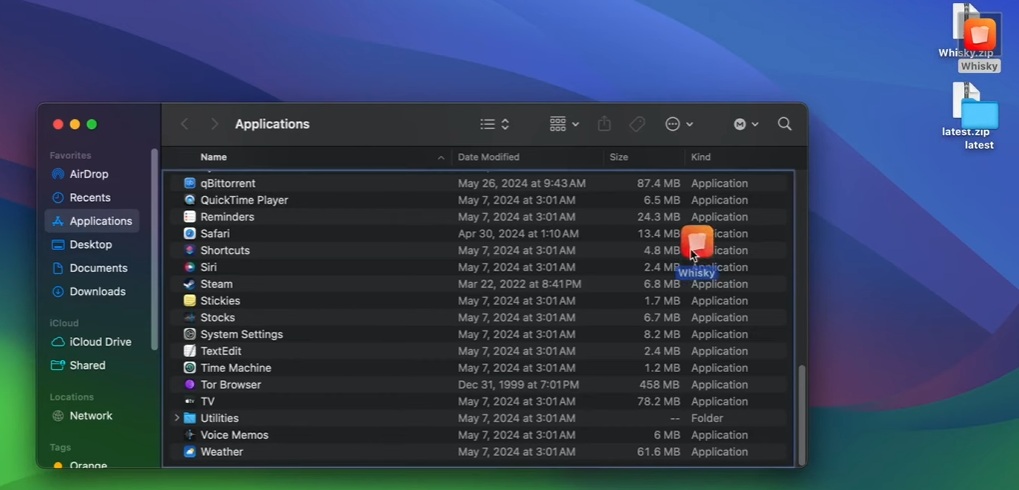
- Download Whisky from the official Whisky site (GetWhisky) as a ZIP.
- Open the download folder.
- Drag Whisky.zip into the /Applications folder.
- Open Whisky from Applications.
- On first launch, if prompted, allow Whisky to install required components (it may prompt to install Rosetta and the Game Porting Toolkit).
Note: First launch may take a bit longer if Whisky is installing components.
Step 3: Create a Bottle in Whisky
This step creates a dedicated Windows-like container (a “bottle”) where Yandere Simulator’s Windows files will live and run. Keeping the game inside a bottle helps prevent path issues and keeps your setup organized.
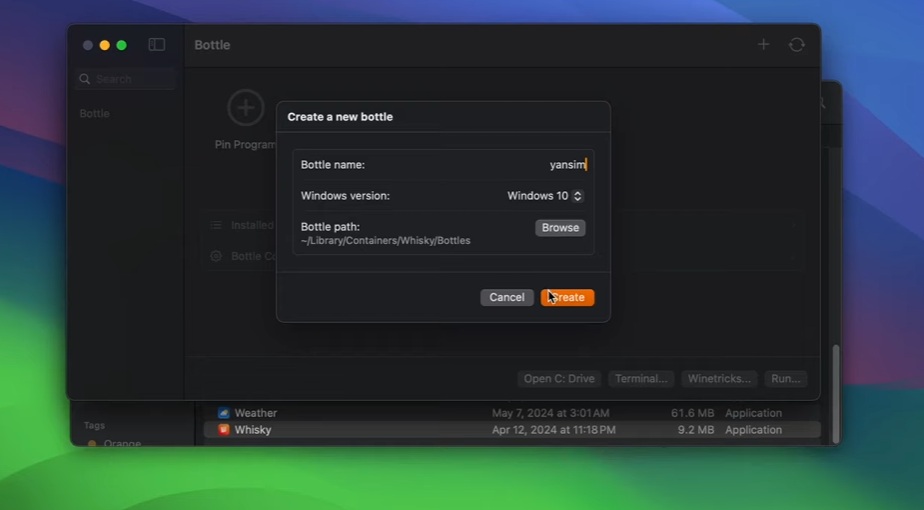
- Open Whisky.
- Click on “+” icon to Create Bottle.
- Name the bottle (example: YanSim).
- Choose a Windows version (Whisky supports multiple Windows versions, including Windows 10).
- Confirm the bottle location (default is in your user Library containers area).
- Select the new bottle in the left sidebar to manage it (pins, configuration, installed programs).
Common mistake to avoid: Creating multiple bottles for the same game without a reason can make updates and troubleshooting harder. One bottle per game is typically easier to manage.
Step 4: Download Yandere Simulator (Official Methods)
This step gets the official Windows game files. Since Yandere Simulator is officially Windows-only, you will run the Windows build through Whisky on macOS.
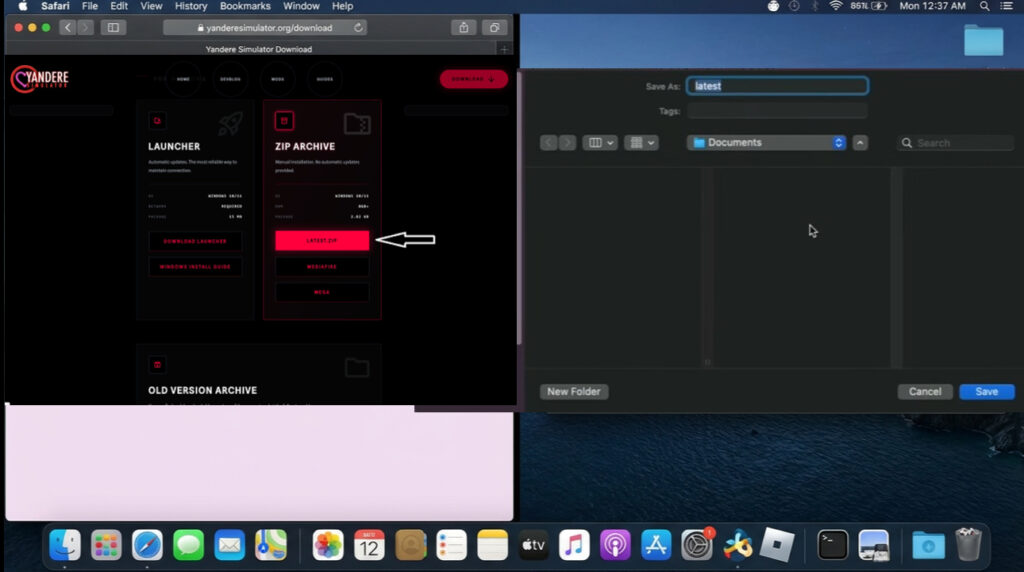
Option A: Use the Launcher (Recommended for Updates)
- Go to https://www.yanderesimulator.org/download/ and click Download Launcher.
- Extract the downloaded archive into a folder.On macOS: double-click a .zip to unzip it (some Windows-focused guides say “Extract to…” which just means “unzip”).
- Confirm you have YandereSimLauncher.exe inside the extracted folder.
Note: This method is best if you want the launcher to handle downloading and updating for you.
Option B: Download the Full ZIP (Simpler, Manual Updates)
- Download the game’s ZIP archive from the official download page method.
- Extract the ZIP file.
- Confirm you have a folder containing YandereSimulator.exe.
Note: With the ZIP method, updating usually means deleting the old folder and extracting a newer build again.
Step 5: Put the Game Files into the Whisky Bottle (Important)
This step places the game in the bottle’s Windows-style C: drive so it behaves like a normal Windows installation. Many Windows apps expect to run from inside this structure (commonly referenced as drive_c).
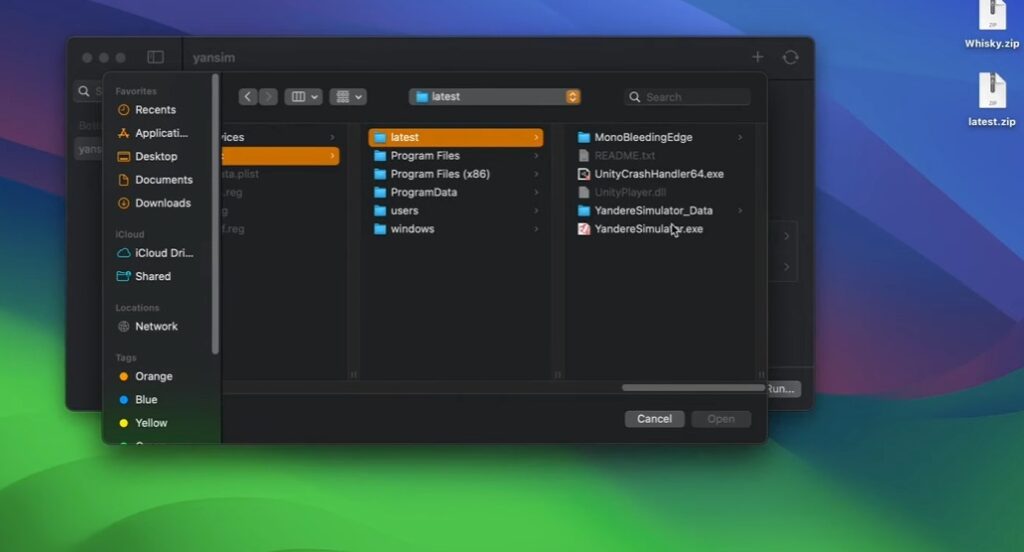
- Open Whisky and select your bottle (example: YanSim).
- Use Whisky’s built-in button/option to open the bottle’s C: drive in Finder (quick access to the bottle’s c_drive/drive_c location).
- Copy your extracted Yandere Simulator folder into a sensible Windows-style location inside the bottle, such as:
- drive_c/ or
- drive_c/Program Files/
Common mistake to avoid: Trying to run the EXE directly from your macOS Downloads/Desktop folder instead of placing it inside the bottle’s C: drive.
Step 6: Run Yandere Simulator in Whisky
This step launches the game (or the launcher) inside the bottle. Whisky lets you do this either by pinning the EXE (best for daily use) or running it once without pinning (good for a quick test).
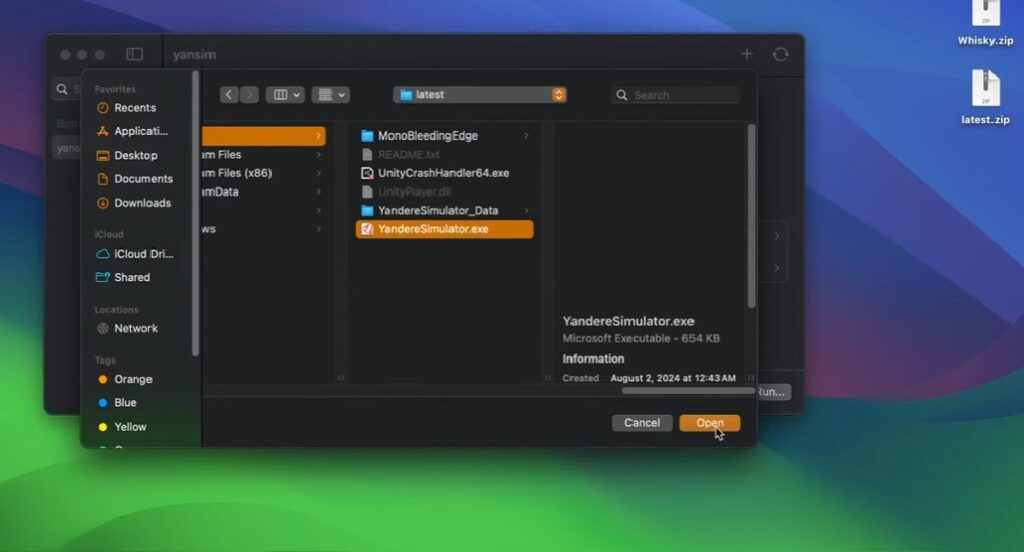
Method A: Pin the EXE (Best Day-to-Day)
- Select your bottle in Whisky.
- Click Pin Program.
- Browse to the EXE inside the bottle:
- YandereSimLauncher.exe (if using the Launcher), or
- YandereSimulator.exe (if using the extracted ZIP archive).
- Click Pin.
- Launch it by clicking the pinned icon/program entry in the bottle.
Note: Pinning keeps the program easily accessible from the bottle’s program list.
Method B: Run Without Pinning (Quick Test)
- Select your bottle in Whisky.
- Click Run.
- Choose the EXE you want to launch.
Common mistake to avoid: Selecting an EXE that is not inside the bottle’s drive_c structure, which can lead to missing-file or path-related issues.
Step 7: Playing and Updating (Launcher vs ZIP)
This step explains what to do after the game launches, and how to keep it updated depending on which official download method you chose.
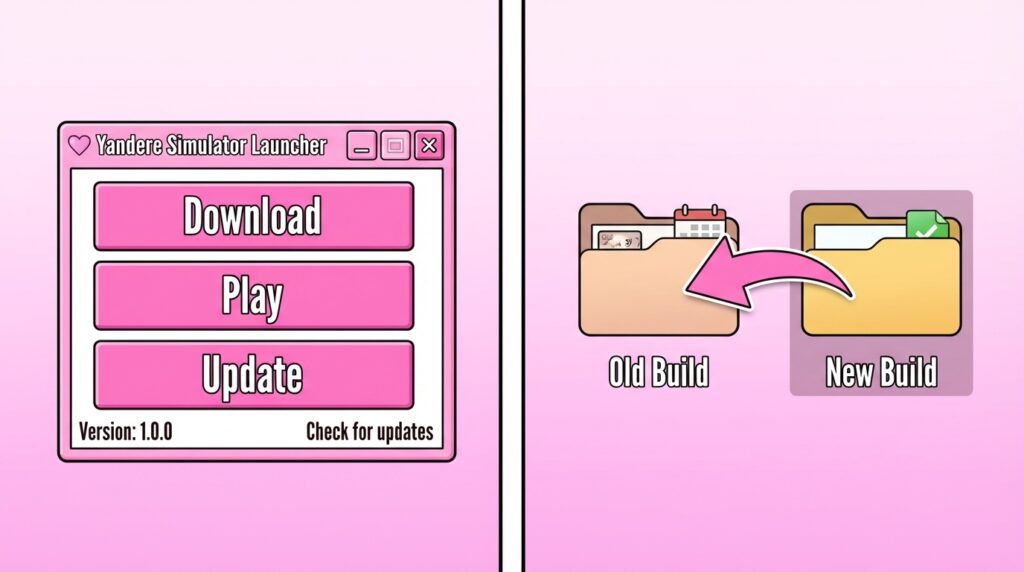
If You Used the Launcher
- Open YandereSimLauncher.exe in Whisky.
- Click Download the first time.
- Click Play to start the game.
- Later, use Update inside the launcher when new builds are available.
Note: This is typically the easiest way to stay current without manually replacing folders.
If You Used the ZIP Archive
- Launch YandereSimulator.exe in Whisky.
- To update, replace the old extracted folder with the newer one (commonly by deleting the old folder and extracting the new build again into the bottle).
Common mistake to avoid: Mixing files from two different ZIP builds in the same folder. Replacing the entire folder is usually cleaner than copying over individual files.
Step 8: Common Issues (Practical Checks)
This step helps you fix the most common problems people run into when installing or launching Whisky, downloading through the launcher, or dealing with performance limitations.
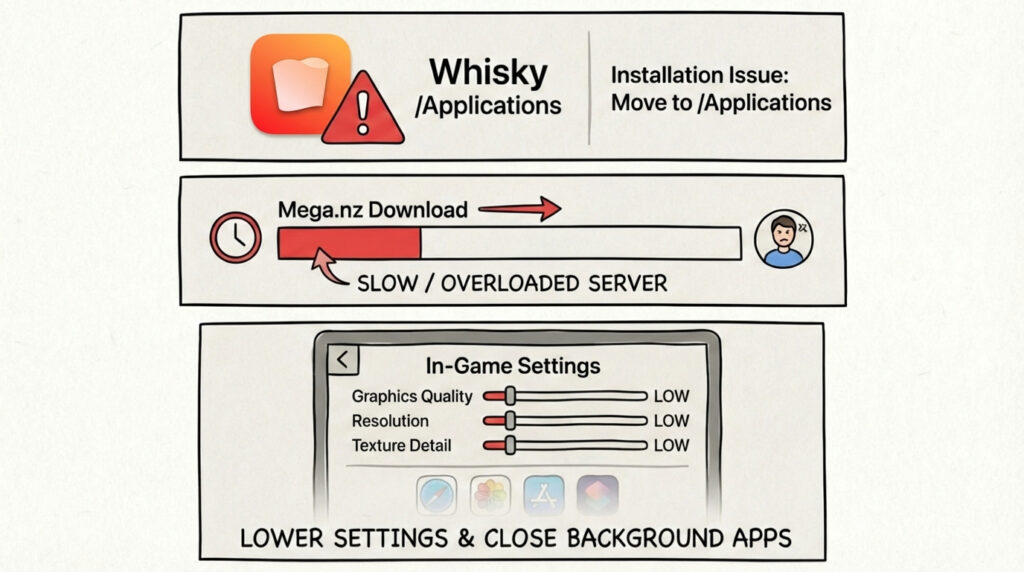
- Whisky won’t open: Confirm Whisky is installed in /Applications (not run from Downloads or another folder).
- Launcher download errors (example: Mega.nz problems): This can happen if Mega is overloaded or slow. If it won’t download reliably, use the ZIP archive method as an alternative.
- Poor performance: Try lowering in-game graphics settings and closing other apps. Yandere Simulator can be heavy on weaker systems.