This guide walks you through installing and playing Yandere Simulator on a Windows PC in 2026 using the official download method: the launcher from the game’s official download page. Following these steps helps you avoid unofficial files and reduces the chance of installation issues.
Step 1: Before You Install (Windows Checklist)
This step ensures your PC and internet connection are ready so the launcher can download and run the game properly.
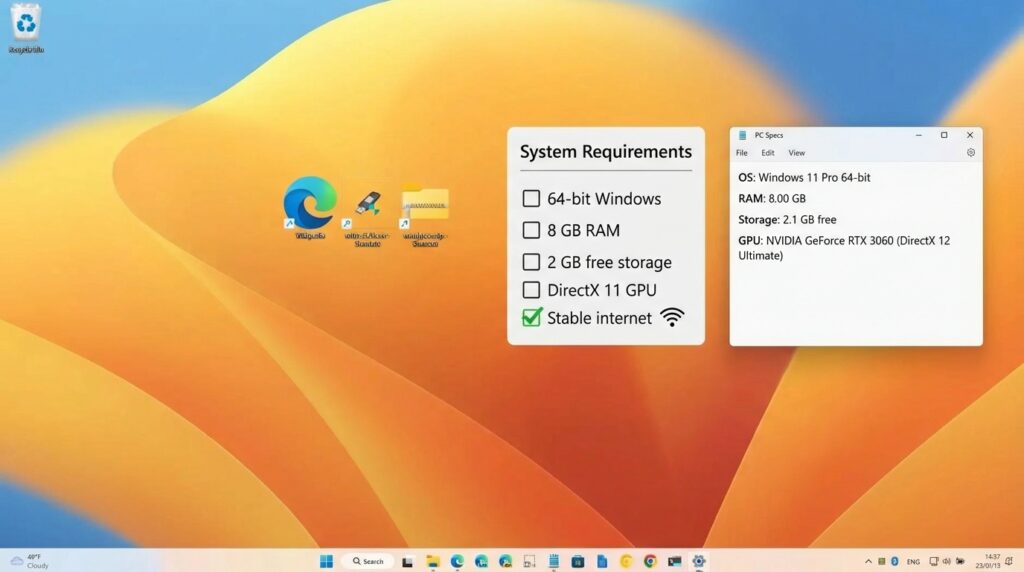
What to check
- Windows version: Use a 64-bit version of Windows. Windows 7+ is listed, but Windows 10/11 is typical in 2026.
- Minimum PC requirements: At least 8 GB RAM, 2 GB free storage, and a DirectX 11 compatible GPU (example listed: GTX 1060 with 2 GB VRAM).
- Internet connection: You need a stable connection because the launcher downloads the game files.
Common notes
- If you are low on storage, the download and extraction may fail or stop mid-way.
- If your internet is unstable, downloads may take longer or require restarting the launcher download.
Step 2: Download the Game Launcher
This step gets the launcher directly from the download page so you can download the game safely.
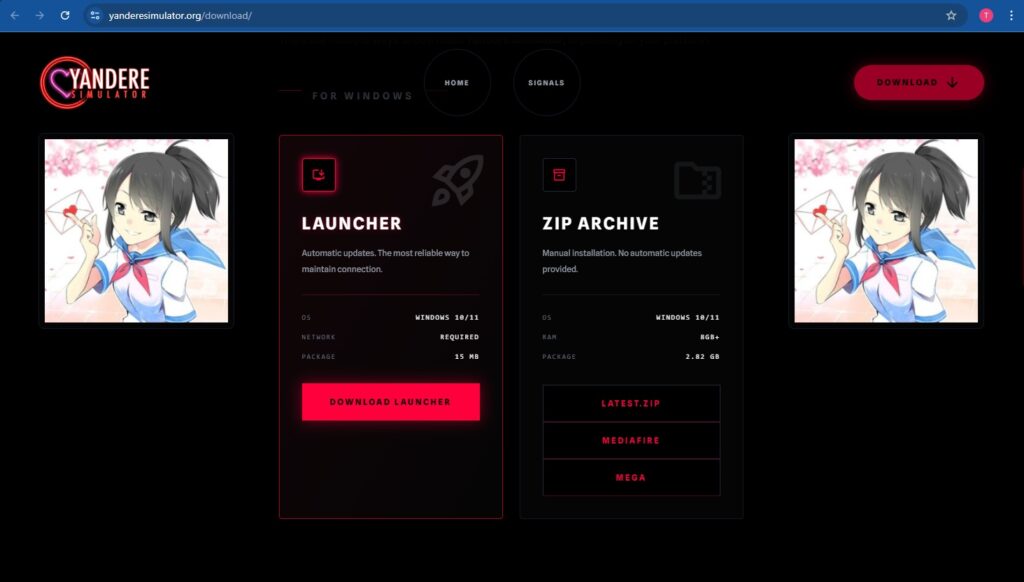
Actions
- Open your web browser.
- Go to: https://yanderesimulator.org/download/
- Click Download Launcher.
- Save the file. It is usually a .zip archive, often named similar to YandereSimLauncher.zip.
Common mistakes to avoid
- Do not download the launcher from unofficial mirrors or re-upload sites.
- If you cannot confirm the source is the official page above, do not run the file.
Step 3: Install the Launcher (Extract and Run)
This step extracts the launcher files and runs the launcher program so it can download the game.
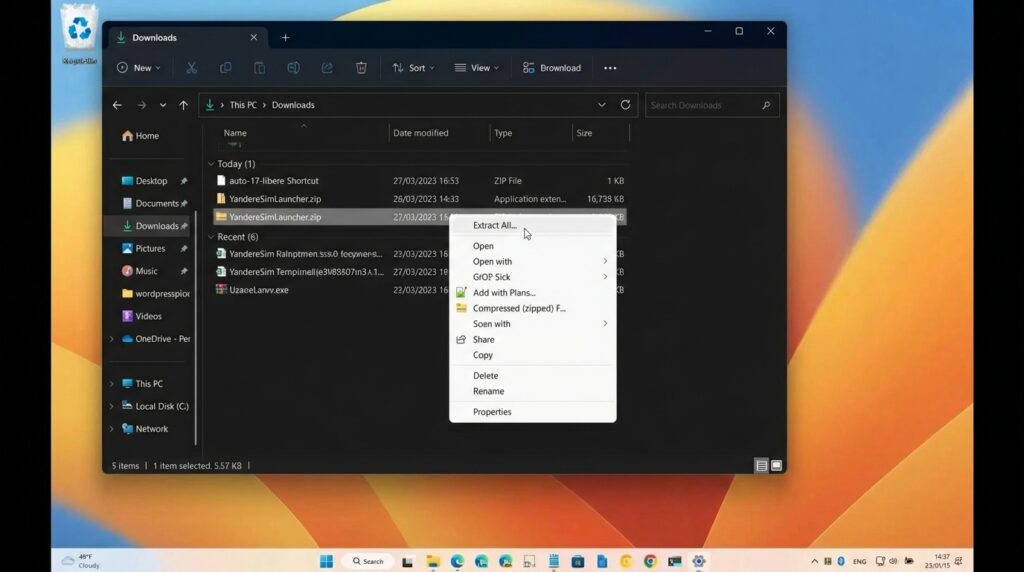
Actions
- Open File Explorer.
- Go to your Downloads folder.
- Right-click the launcher .zip file and choose Extract All… (or use 7-Zip/WinRAR).
- Open the extracted folder (commonly named something like YandereSimLauncher).
- Double-click YandereSimLauncher.exe to run it.
Windows security warning note
If Windows shows a warning about an unknown publisher, only confirm and proceed if you are sure you downloaded the launcher from the official site listed in Step 2.
Step 4: Download the Game via the Launcher
This step uses the launcher to download and extract the actual game files. The launcher typically won’t let you play until everything is fully downloaded.
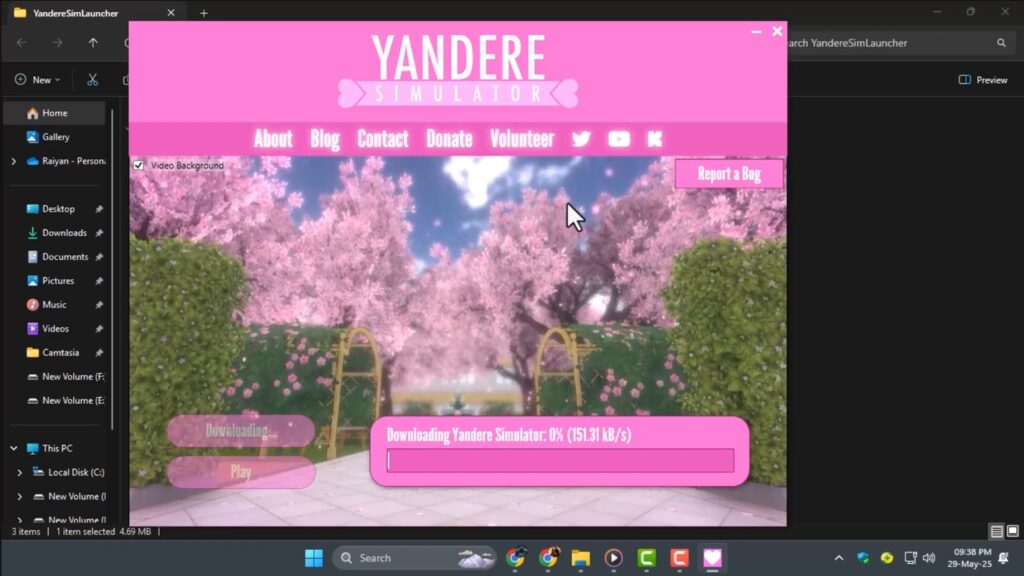
Actions
- In the launcher, click Download to fetch and extract the game files.
- Wait until the download finishes completely.
- When available, click Play to start the game.
Common mistakes to avoid
- Do not close the launcher during download unless you intend to restart the download later.
- If Play is not available yet, the download may still be in progress.
Step 5: First Launch Setup (Recommended Performance Settings)
This step helps your first session run smoothly by adjusting settings after the game launches. Since the project is under active development, performance can vary.
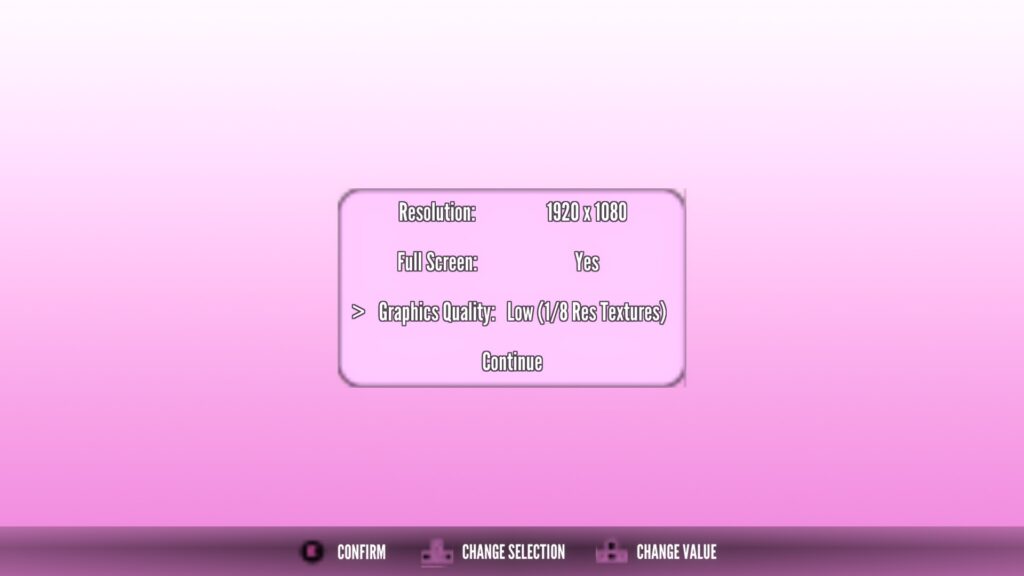
Actions
- Run the game once.
- Open the game’s settings and adjust resolution, fullscreen, and quality as needed.
- If FPS is low, lower shadows and effects first.
- If you experience stutter, close other heavy apps (extra browser tabs, recording tools, etc.).
Notes
- Performance changes can happen between builds because the game is continuously updated.
Step 6: How to Play (Basic Controls and First Steps)
This step gets you into the game and explains what to expect. Because the game is periodically updated, some features and tutorial prompts may change depending on your build.
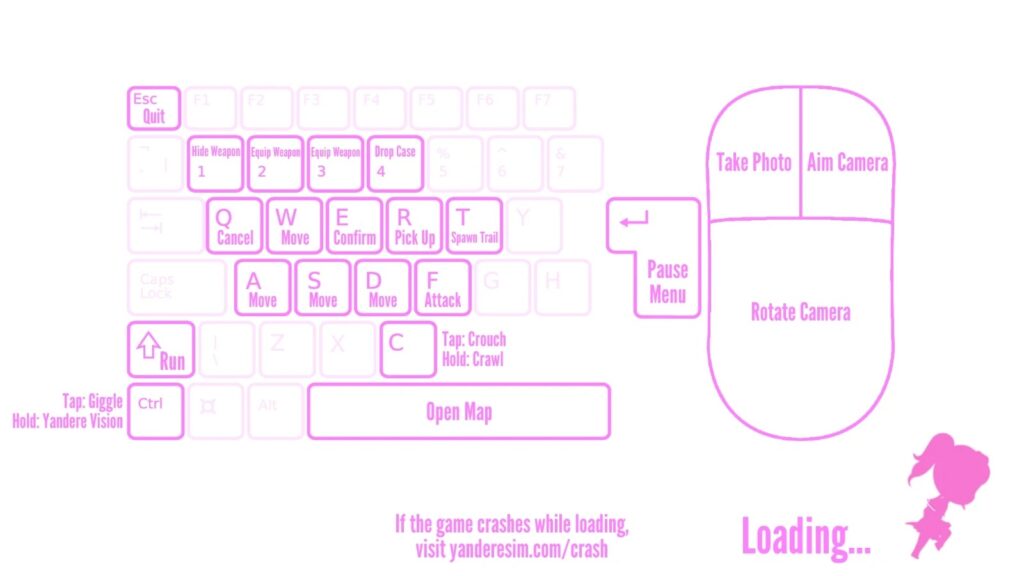
Actions
- From the main menu, start a new game.
- Follow any on-screen prompts or tutorial elements available in your build.
- Play using keyboard + mouse (typical PC setup).
- If you plan to use a controller, note that support and behavior may vary by build.
What to expect (project status)
- If something seems unfinished or buggy, that can be normal for this project because it is continuously updated and may include placeholders or unfinished features.
Quick Reference Table
| Task | Where You Do It | What You Click |
|---|---|---|
| Get official launcher | Browser | Download Launcher |
| Extract launcher | File Explorer | Right-click ZIP → Extract All… |
| Run launcher | Extracted folder | YandereSimLauncher.exe |
| Download game files | Launcher | Download |
| Start the game | Launcher | Play |
Troubleshooting Notes (Based on the Steps Above)
Use these quick checks if something doesn’t work as expected.
- Windows warning appears: Only proceed if you downloaded the launcher from the download page.
- Download seems stuck or Play is disabled: Wait for the download to finish completely; some launchers enable Play only when ready.
- Low FPS or stutter: Lower shadows/effects first and close heavy background apps.
- Controls or features differ: Builds can change because the game is periodically updated.
If you want to keep your setup clean, consider creating a dedicated folder for the extracted launcher and game files after download so they’re easy to find later.